01
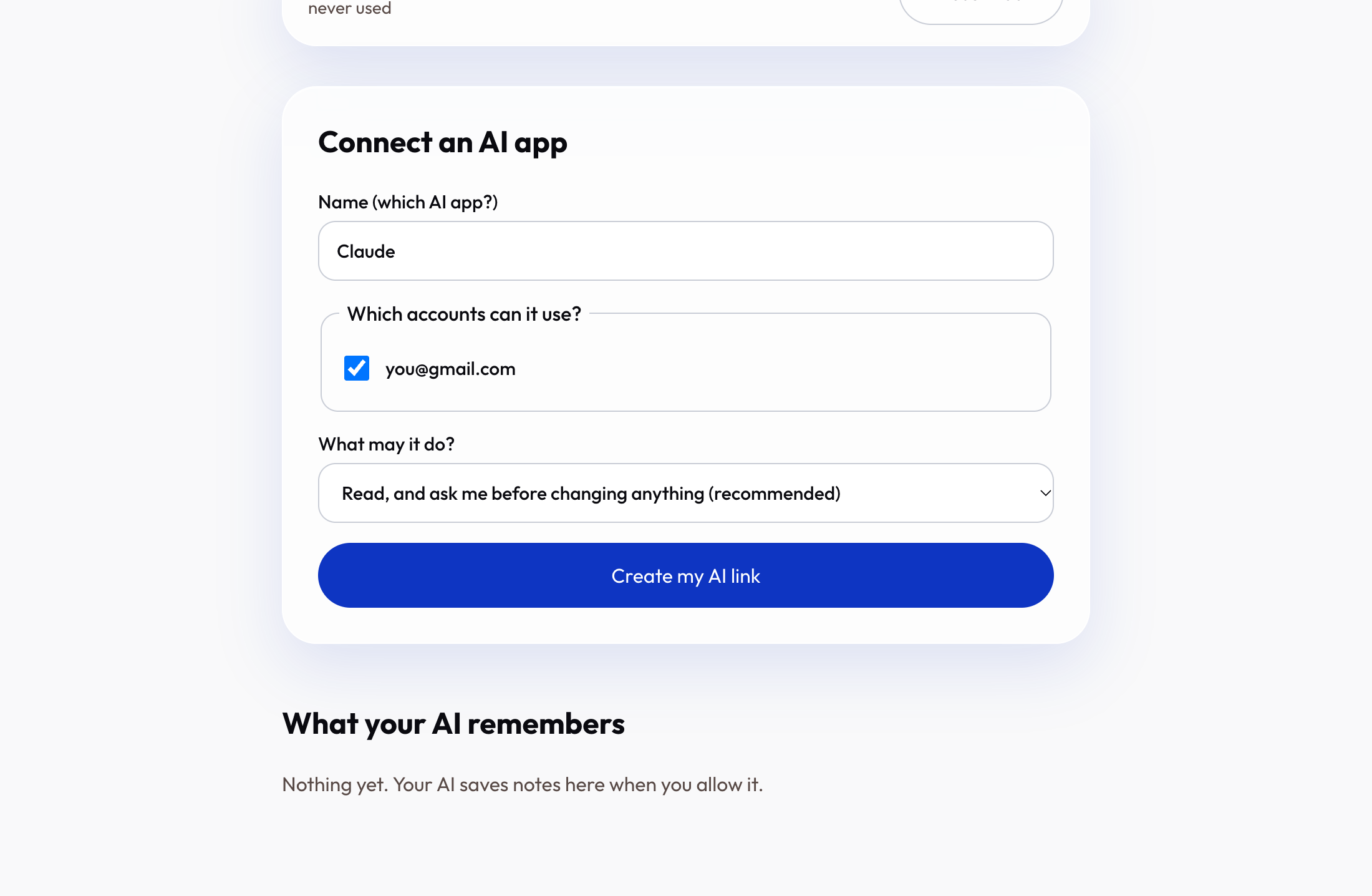
Choose what it may use
In “Connect an AI app” name your app, tick the accounts it can reach, and pick how careful it should be.
Tip: We recommend “ask me before changing anything”.
02
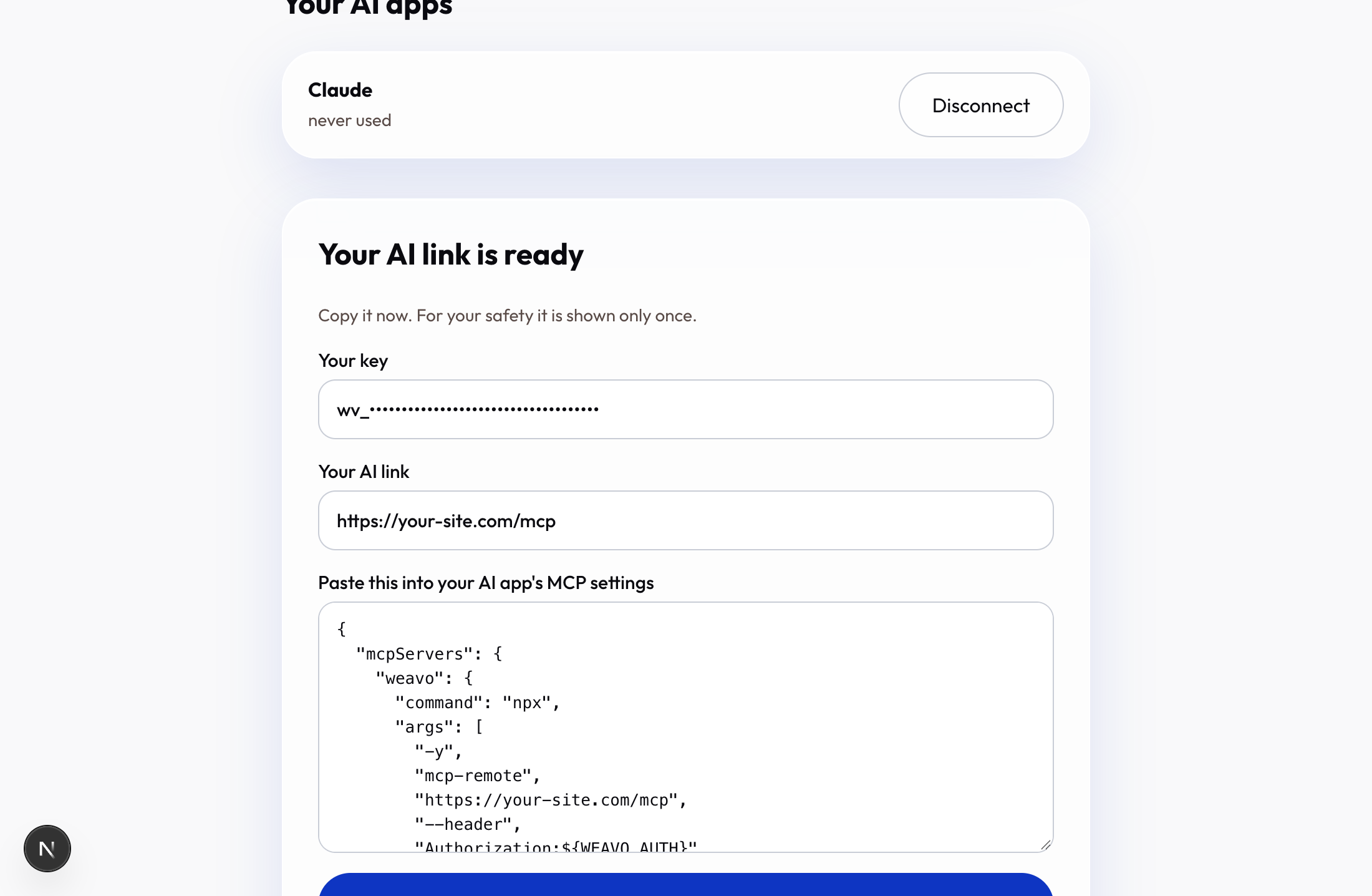
Copy your settings
We show your link and a ready-made settings block once. Press Copy settings.
Tip: For your safety the key is shown only once.
03
Paste into your AI app
Open your AI app’s MCP settings and paste the block. Restart the app.
npx -y mcp-remote https://YOUR-SITE/mcp --header "Authorization:Bearer wv_…"
Tip: Claude Desktop, Claude Code and Cursor all support this.
04
Ask it anything
Try: “List my email accounts, then show my newest messages.” When it wants to send something, you approve it on your dashboard.
Tip: You stay in control.